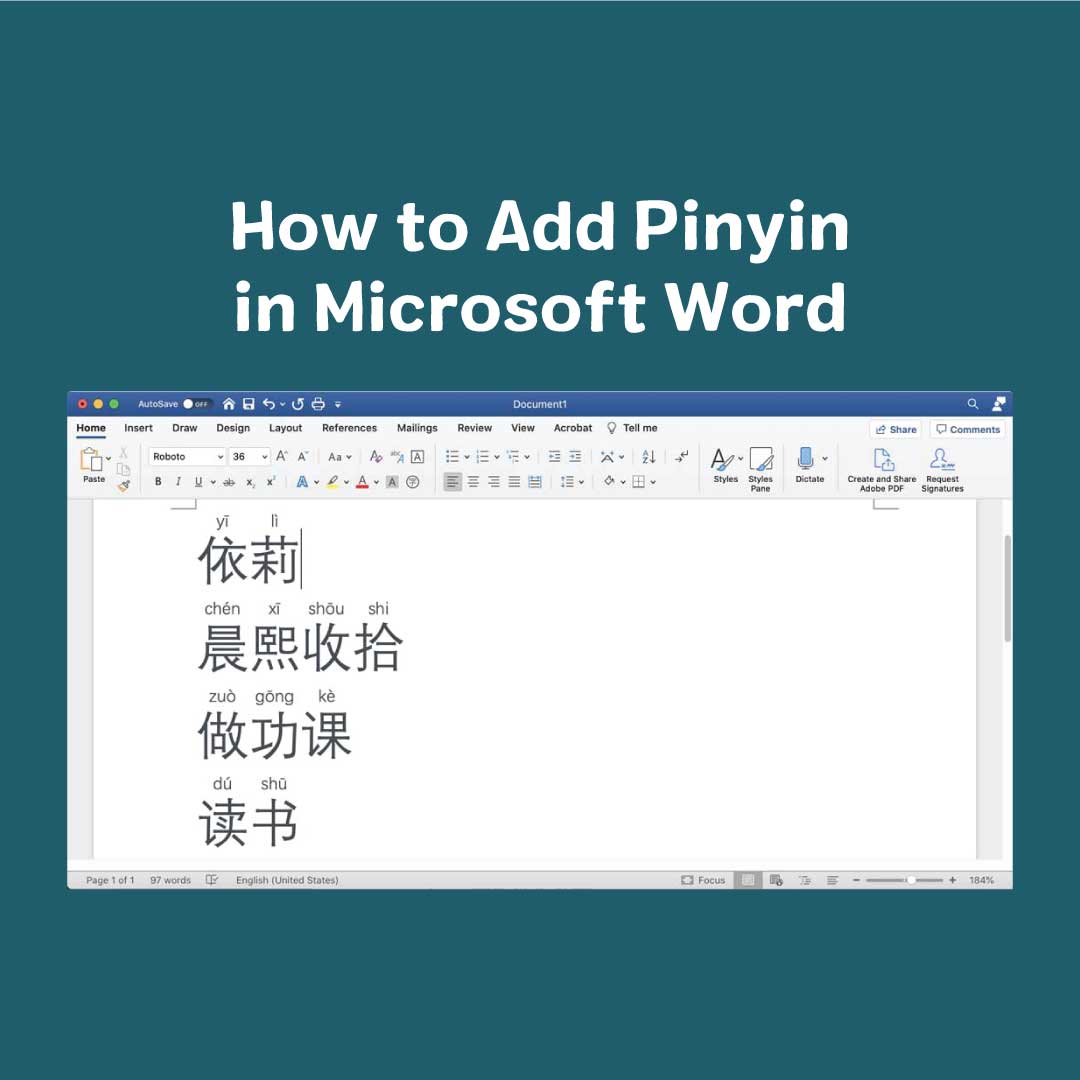
This is a step-by-step tutorial on how to add Pinyin in Microsoft word. Adding Pinyin is useful for creating flashcards, labels, worksheets, and any documents for learning Chinese. Pinyin is a Phonetic system that helps Chinese learners sound out the characters and aids in better pronunciation.
A step-by-step tutorial is also available for Zhuyin.
Add Pinyin to Text in Microsoft Word
First, update your language Setting.
1. From the top menu, click on Word. Then select Preferences.

2. Click on East Asian Languages.

3. Select Simplified Chinese. The Pinyin option does not work without first changing your language to Simplified Chinese.

Next, add Pinyin to selected text
4. Select the text you want to add Pinyin to.
5. From the top menu, click on Format, Asian Layout, and click on Phonetic Guide.

6. Change the alignment to Centered. Adjust the size of the Pinyin to fit your text.

7. Now Pinyin has been added to your text.

Like this post? Check out more tech tips and tricks for learning Chinese.



4 Comments
Any idea how to do this on a windows computer? This is awesome. It would be so helpful to me 🙂
I will try to find a solution. I imagine it’s possible since MS word is a PC product.
For Windows Computer
1. Select the text you want to add the pinyin to
2. In the top corner, there is a search bar
2. In the search, search ‘Phonetic Guide’
3. After that, click OK to add the pinyin
*disclaimer: it doesn’t allow you to translate a lot of pinyin at a time so you will have to do it in sections
Works great. Wish I would have known this earlier.